
🖥️ Desktop App
Manage and monitor ZeroTrace devices using the native desktop application
✅ Supported Devices
ZeroTrace Desktop works with the following hardware:
- ZeroTrace Kit
- ZeroTrace Pro
- Any ZeroTrace device with a COM port
How to identify the correct ports
Your device has two USB-C ports.
One port is labeled COM or UART and is used for the desktop app.
The other port is labeled USB and is used for payload injection only.
🚀 Why Use the Desktop App
-
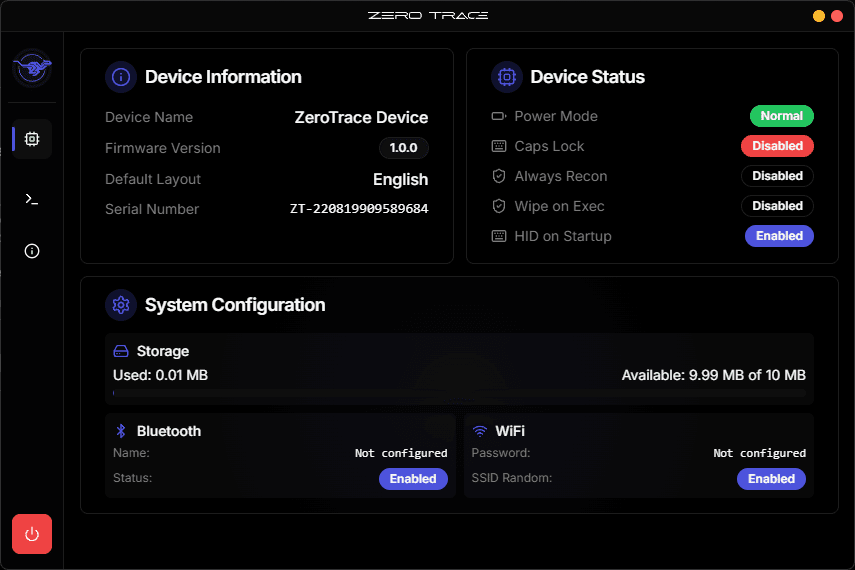
All-in-one dashboard View device status, storage usage, and connectivity at a glance.
-
No browser required Plug in your device and manage it directly from the app.
-
Command terminal Run commands and configure settings with full control.
-
Real-time monitoring Receive live updates about device health and activity.
⚡ Quick Start
1. Download and Install
- Download for Windows, macOS, or Linux
- Run the installer and launch ZeroTrace Desktop.
2. Connect Your Device
- Connect your device to your computer using the COM port and a USB-C data cable.
- Open the ZeroTrace Desktop app.
- Follow the on-screen instructions to connect your device.
🧭 Explore the Interface
Real-time device overview
View device status, storage usage, and connectivity instantly.
Monitor operational health with live updates.
Direct terminal access
Run commands, scripts, and payloads instantly.
Advanced users gain full scripting control.
Guided device setup
Step-by-step connection using the COM port.
Includes built-in troubleshooting tips.
🛠️ Troubleshooting
Device not detected
Make sure the cable is connected to the COM port and supports data transfer.
Try a different USB port on your computer.
If you are unsure which port to use, check the device manual or contact support.
Ready to get started?
Download ZeroTrace Desktop and unlock full device management.